How to Configure Your Quadcopter
To configure cameras, maps, and other ROS 2-based components, use the integrated graphical tool clover2-settings. The tool uses a tree-based structure (similar to a computer’s folder system) to organize settings.
It includes built-in validation to ensure you cannot enter invalid parameter values.
You can navigate the menu using either mouse or keyboard:
Up/DownArrows: Navigate through the list.Enter: Select an option or open a menu group.Esc: Go back one level or exit the program.Ctrl+S: Save changes to the configuration file.
Settings structure
├── main_camera — Main (bottom) camera settings
│   ├── enable — Enable/Disable the main camera
│   └── feature_detector — Enable/Disable Aruco detection on the main camera
├── front_camera — Front camera settings
│   └── enable — Enable/Disable the front camera
├── optical_flow — Optical Flow settings
│   └── enable — Enable/Disable Optical Flow
├── localization — ArUco tag map localization settings
│   ├── map_server — Map server settings
│   │   ├── enable — Enable/Disable the ArUco map server
│   │   └── map_filename — Map file name
│   └── aruco_tracker — ArUco marker-based map navigation settings
│       └── enable — Enable/Disable navigation
├── indication — Indication settings
│   ├── led_strip — Enable/Disable the LED strip
│   └── display — Enable/Disable the display
└── additional_sensors — Additional sensor settings
    ├── thermal_camera — Enable/Disable the thermal imaging camera
    └── 2d_lidar — Enable/Disable LiDAR
Warning
After editing the settings, restart the clover2 service using the following command:
sudo systemctl restart clover2
Step-by-Step Example: Configuring the Map File
Open your terminal and run the following command to open the Terminal User Interface (TUI):
clover2-settings
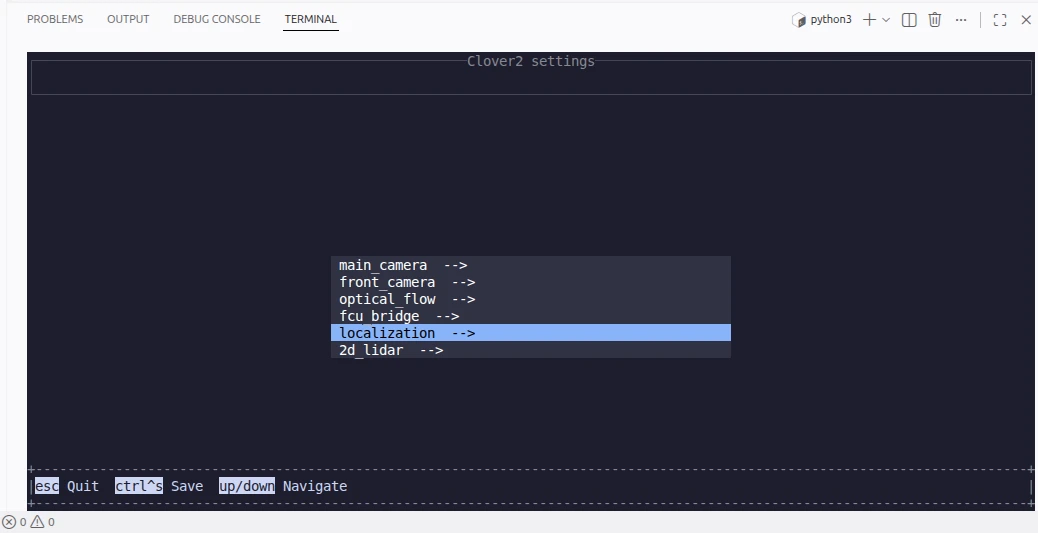
Main screen
Use the Up/Down arrows to highlight localization and press Enter.
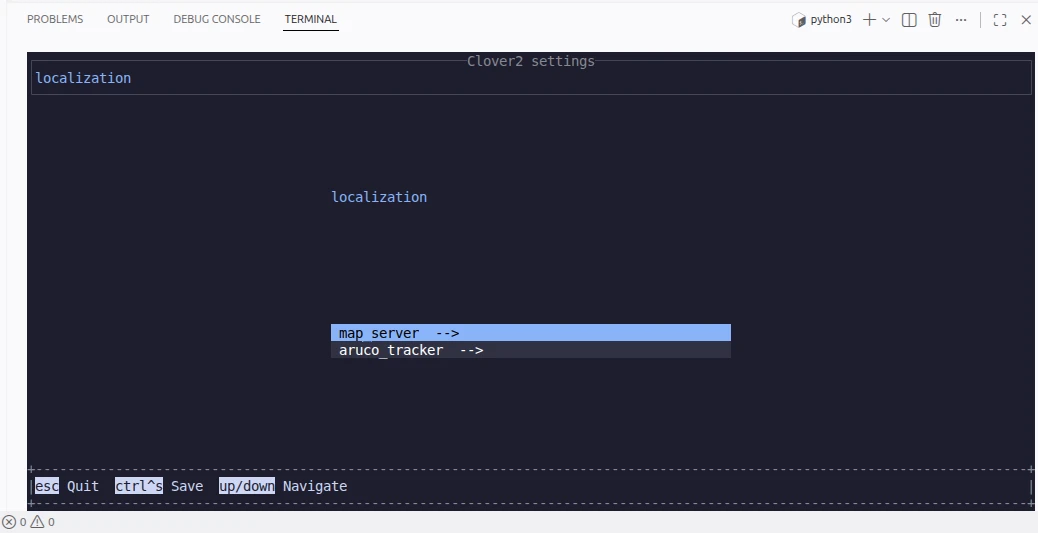
Localization menu
Select map_server to open the map server settings group.
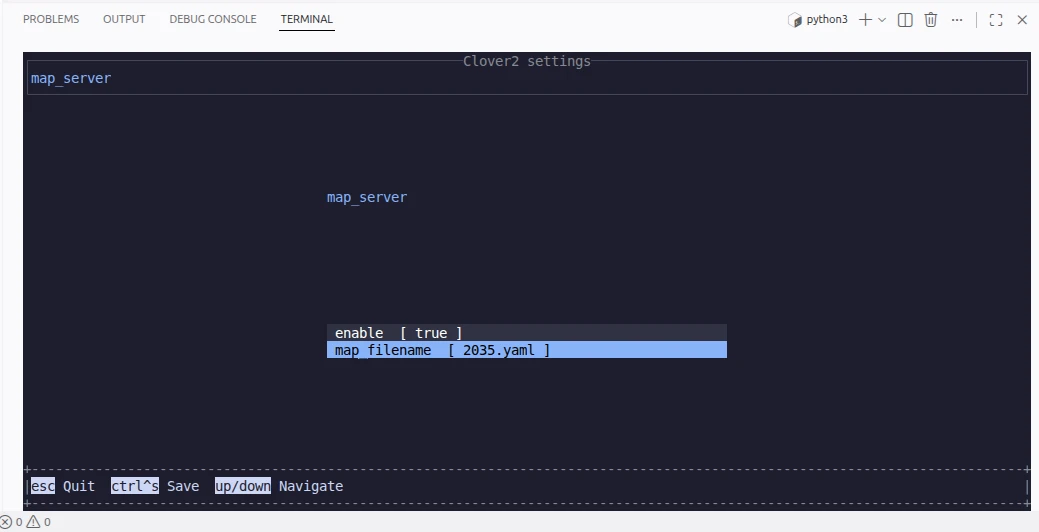
Map server menu
Select map_filename to begin editing. The parameter editor will open.
Use the Left/Right arrow keys to move the cursor and modify the filename.
Press Tab to move to the action buttons.
Use the Up/Down arrows to select Save (to apply changes) or Cancel (to discard them).
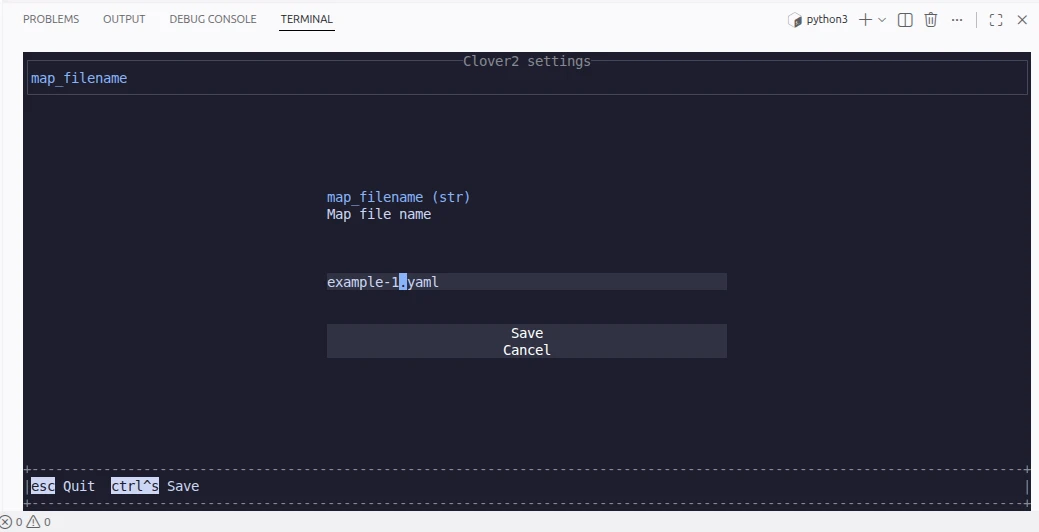
Map filename editing
To permanently write these changes to the configuration file, press Ctrl+S.
A notification will appear confirming the save.
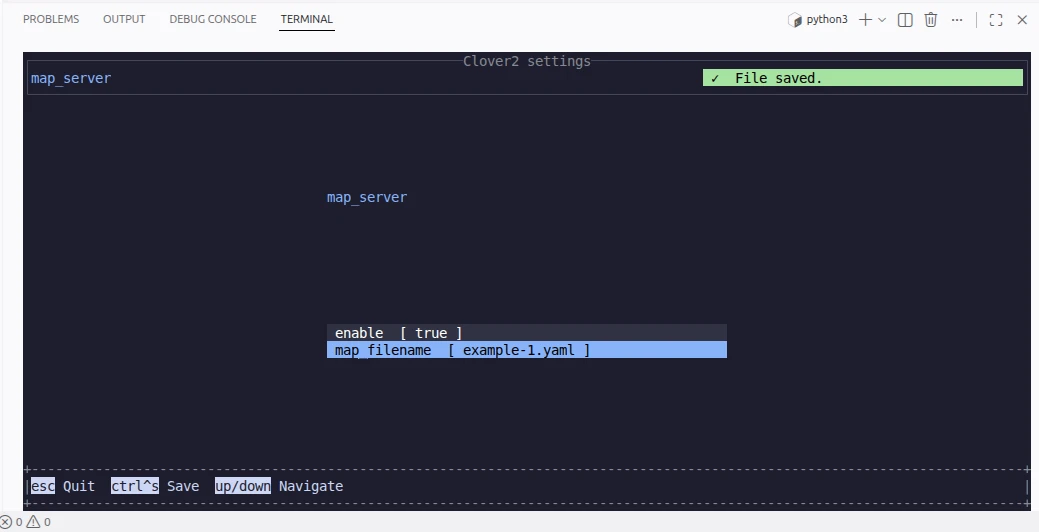
Saved changes
To exit the program, press Esc several times until you return to the terminal.
Finally, restart the clover2 service to apply your new map configuration:
sudo systemctl restart clover2