ROS 2 Commands
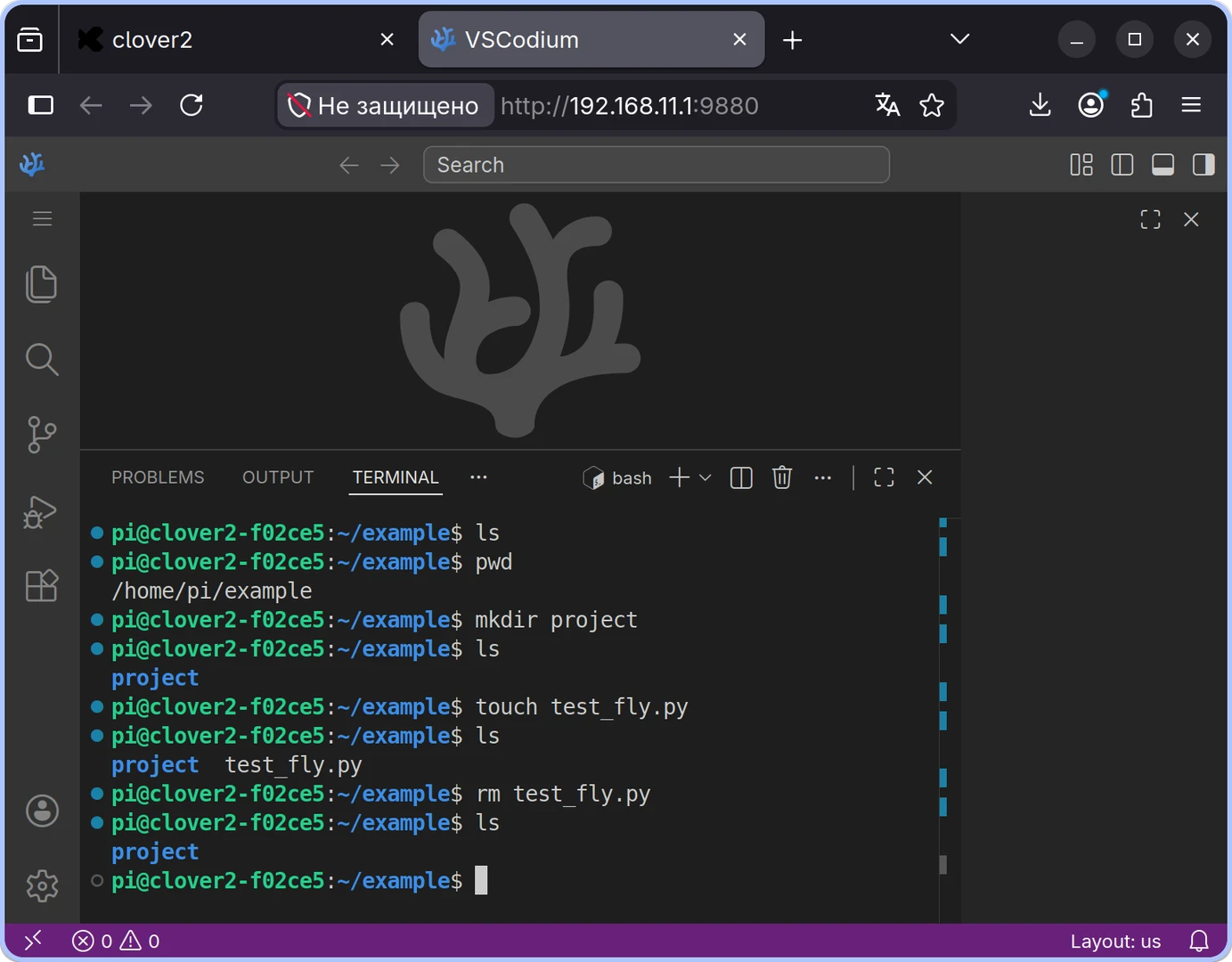
Linux terminal commands
Introduction
When working with ROS 2, the terminal is your primary interface. It is essential for launching nodes, inspecting topic lists, monitoring sensor data, configuring parameters, executing programs, and debugging errors.
While the terminal does not replace a code editor, it is indispensable for gaining real-time insights into your system. If your quadcopter stops receiving sensor data, a node fails to launch, or a required topic is missing, the terminal is your first line of defense.
This guide provides a collection of essential Linux and ROS 2 commands frequently used during development and debugging.
Basic Linux Commands
Linux commands are used to navigate directories, manage files, launch programs, and monitor system processes.
Working with Files and Folders
Command |
Description |
|---|---|
|
Creates a new folder named |
|
Creates an empty file named |
|
Copies |
|
Renames or moves a file |
|
Deletes the file |
Warning
The rm command deletes files permanently; they are not moved to a trash bin. Always double-check your file path and name before pressing enter. Use rm -r with extreme caution, as it deletes a folder and all of its contents recursivel.
Viewing and Searching
Command |
Description |
|---|---|
|
Displays the entire content of |
|
Opens |
|
Searches for the string |
|
Searches for all Python files in the current directory and its subdirectories |
In the command find . -name "*.py" the dot (.) represents the current directory. The -name parameter specifies the search criteria, and the pattern "*.py" matches any filename ending in .py.
To exit less viewer, press q.
Installing Packages
Command |
Description |
|---|---|
|
Updates the local list of available packages from the repositories |
|
Upgrades all currently installed packages to their latest versions |
|
Installs a specific package |
Warning
sudo executes commands with administrative (root) privileges. Always ensure you fully understand a command before running it with sudo to avoid unintended system changes.
Managing Processes
Command |
Description |
|---|---|
|
Lists all running processes and filters for those containing |
|
Displays real-time system processes and resource usage |
|
An interactive, more user-friendly version of |
|
Terminates the process with the ID (PID) |
Basic ROS 2 Commands
The ros2 command is organized into subcommands. For example, ros2 topic list is used for interacting with topics, while ros2 node is used for managing nodes.
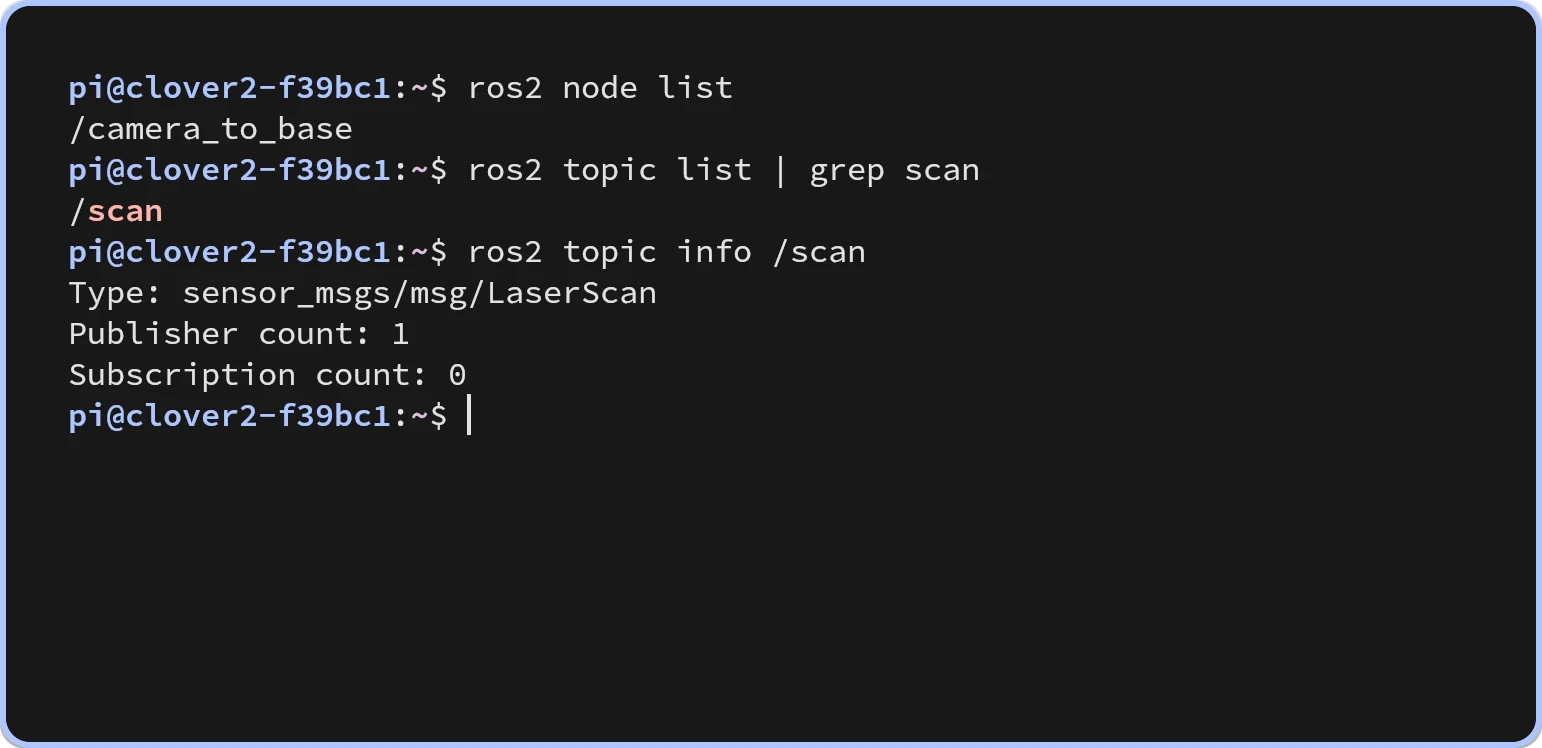
Example of ros2 node and ros2 topic commands
Help
Command |
Description |
|---|---|
|
Displays general help for the |
|
Displays help for topic-related subcommands |
|
Displays help for the |
The --help flag is invaluable if you forget specific syntax or need to view available parameters. You can append --help to almost any ROS 2 command to access its specific documentation.
Nodes
Command |
Description |
|---|---|
|
Lists all currently active nodes |
|
Displays the topics, services, and parameters associated with the |
If a node does not appear in the list, it has not been discovered by the system. This typically indicates that the node is not running or is not communicating on the same ROS_DOMAIN_ID.
Topics
Command |
Description |
|---|---|
|
Lists all available topics in the system |
|
Displays the message type and the number of publishers and subscribers for the |
|
Prints a single message from the |
|
Displays the current frequency (rate) at which messages are being published on the |
To print only a specific field from a message, use:
Command |
Description |
|---|---|
|
Prints only the |
Services
Command |
Description |
|---|---|
|
Lists all available services |
|
Displays the service type for |
|
Sends a request to the |
Services are used to trigger specific actions via a request-response mechanism: a client sends a request, and the service provides a response. For example, a service might be used to reset a device’s state. Note that specific quadcopter controls, such as arming or disarming, will depend on the specific packages and interfaces installed on your system.
Parameters
Command |
Description |
|---|---|
|
Lists all parameters available to the running nodes |
|
Retrieves the current value of the |
|
Sets the |
Parameters can be used to adjust the publishing rate, switch a device’s operating mode, or modify other settings defined by the node developer.
Parameters are scoped to specific nodes. Therefore, the ros2 param list command must always be accompanied by a node name to be effective.
Launching Programs
Command |
Description |
|---|---|
|
Lists all registered executable files within the specified |
|
Launches a specific |
|
Executes the |
Files ending in .launch.py must be executed using the ros2 launch command, rather than ros2 run.
If a package or executable cannot be found, first ensure that your environment has been properly sourced. You can then verify the availability of your files using these commands:
Command |
Description |
|---|---|
|
Searches for installed packages containing the string |
|
Lists all executable files available in the |
While ros2 run is convenient for launching a single node, most real-world projects utilize ros2 launch. This is because complex systems typically require multiple nodes to be launched and configured simultaneously.
Recording Data
Command |
Description |
|---|---|
|
Records messages from the |
|
Records messages from all currently available topics |
|
Replays the recorded data from the specified bag file |
Recording data into bag files is essential when you need to save sensor data to replay later, allowing you to test algorithms without a physical robot or live sensors.
Practical Debugging Scenario
If you are expecting data on the /scan topic but are not receiving it, follow this systematic troubleshooting workflow:
Verify the required node is running:
Command
Description
ros2 node listLists all active nodes
Locate the topic:
Command
Description
ros2 topic list | grep scanFilters the topic list to find any topic containing
scanInspect the topic details:
Command
Description
ros2 topic info /scanChecks the message type and verifies if there are active publishers and subscribers
Test the data stream:
Command
Description
ros2 topic echo --once /scanAttempts to print a single message to verify data is actually flowing
ros2 topic hz /scanMonitors the frequency of incoming messages to check for stability
If the topic is missing from the list. Check if the node responsible for that topic is actually running.
If the topic exists but no messages appear. Check the physical device connection, verify the driver’s parameters, and inspect the terminal where the node was launched for error logs.